
What type of schedule does the student need (a written schedule, a picture-written schedule, or a picture schedule) to independently plan for upcoming events?
The use of a weekly, monthly, and/or annual calendar or planner can greatly support organization and planning of upcoming events. If a student can learn to use such tools, he can clearly observe his work schedule and upcoming important personal events. From this visually depicted information, he can then determine if there might be a conflict and respond accordingly. Even if a student works various shifts week-to-week, using one of these schedules can provide organization in planning ahead by requesting time off prior to ever being scheduled for a conflicting shift.
It may be that you initially introduce a weekly schedule where the student tracks his day-to-day events (e.g. “School 8a-3p”, “Home 4p-bed”) successfully before extending to a bi-weekly or monthly system. Determining the type of data on the schedule (written, picture-written, picture) will be based solely on the student’s comprehension. Icons or images can depict “home,” “school,” “work,” and other events clearly in most cases, so it should not be assumed that a student who requires a picture-written schedule is unable to use these extended planners.
How will the student interact with his schedule to ensure that he is consistently using and referencing it? Will he check items off, delete items, etc.?
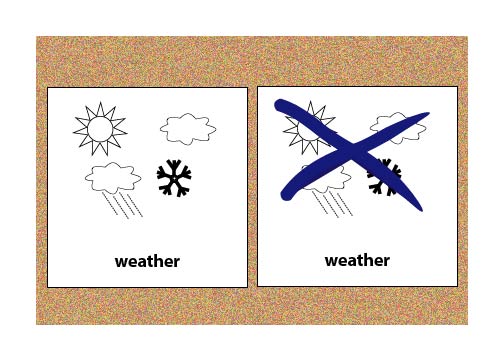
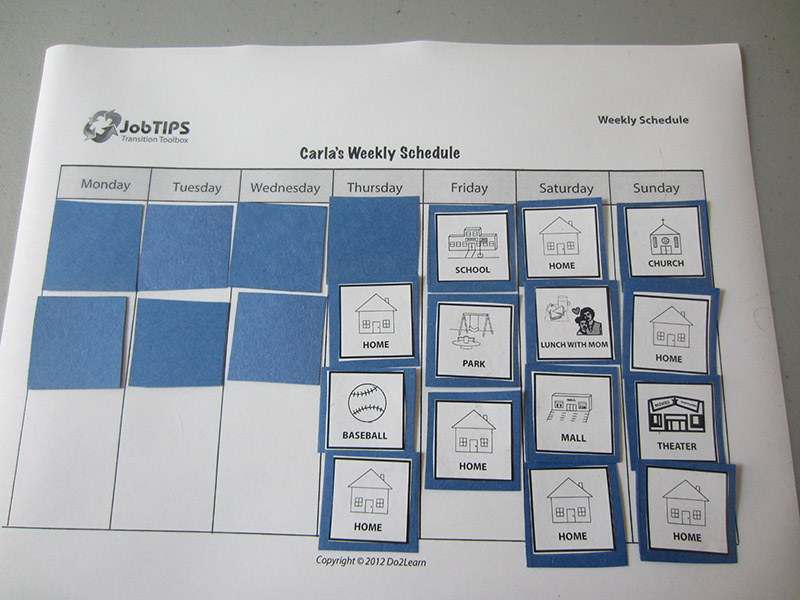
With paper-based schedules, the student may cross through, check off, or even erase completed items. Additionally, a student may benefit from schedule systems allowing actual removal of events or flipping over the events (e.g. event cards attached by Velcro or magnets). If using the flipping over method, it may help to color the back of the event cards a prominent color, such as red, to help clarify a completed event.
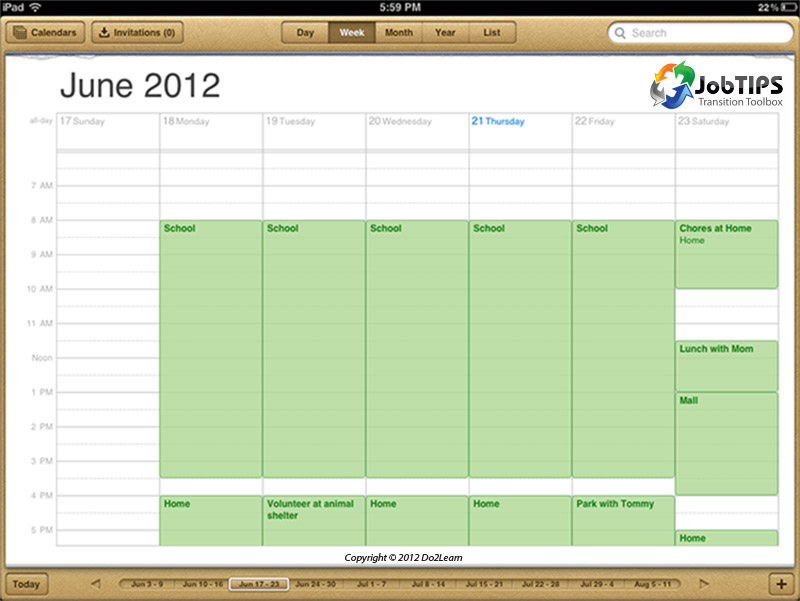
Some students will respond more effectively to calendars and schedules housed on mobile devices. Some options, such as Google Calendar or Apple’s iCal, allow various interactive techniques such as fading events as they pass, deleting the events, or changing the color of events when completed. While these digital options sometimes have a steeper learning curve initially, they offer a surplus of user-friendly options such as setting repeating events and audible and visual reminder alarms.
Below are examples of a single weekly schedule using different interactive styles of cross-through, flipping, and digital event fading:
Is the schedule available to the student at all times? If not, what adjustments should you make to ensure its accessibility?
Planners come in all sizes. Purchased planners may be small enough to fit in a purse or pocket, or desk calendars can hang on a wall. If creating schedules from the View2Do program templates, the student may wish to keep them in a notebook or backpack. If using the digital options, the student will be able to access his schedule via on-site computer, mobile phone, or tablet. Always adjust the schedule to best fit the needs of the student to encourage use.
What additional cues (e.g. time durations, highlighting, reminders) might you add to the schedule to clarify expectations and activities?
In order to align this intervention topic area with the unique needs of the student, do you need to create a schedule in the View2do program?